
Get your statement
In the Revolut app:
- Tap Invest › More › Documents › Brokerage account › Account statement.
- Choose CSV as the format and All time as the date range.
- Get the file onto your computer, for example by emailing it to yourself.
Always choose All time. The app needs your whole history, from your first trade until today, to know what you still hold. A shorter range lists only the buys and sells inside it, so the results would be wrong or the file would be rejected as incomplete.
The first time
The app opens on a short welcome in two steps.
- Your statement. Drop the CSV file from Revolut on the window, or click Choose statement file… The app reads it straight away and shows what it found: how many transactions, the date of the latest one, and how many investments you still hold. If the file isn’t right (another range than All time, say), it explains what is wrong. Click Continue.
- Keep a spreadsheet up to date? Choose Use a spreadsheet I have to pick an Excel file you already have, Create a new one to let the app make one where you choose, or Not now to only see the values in the app. Click Show my investments.
Every time after that
The app opens on Home and looks up today’s prices by itself: the amounts fill in after a few seconds. Home has three parts:
 Statement Portfolio Tracker
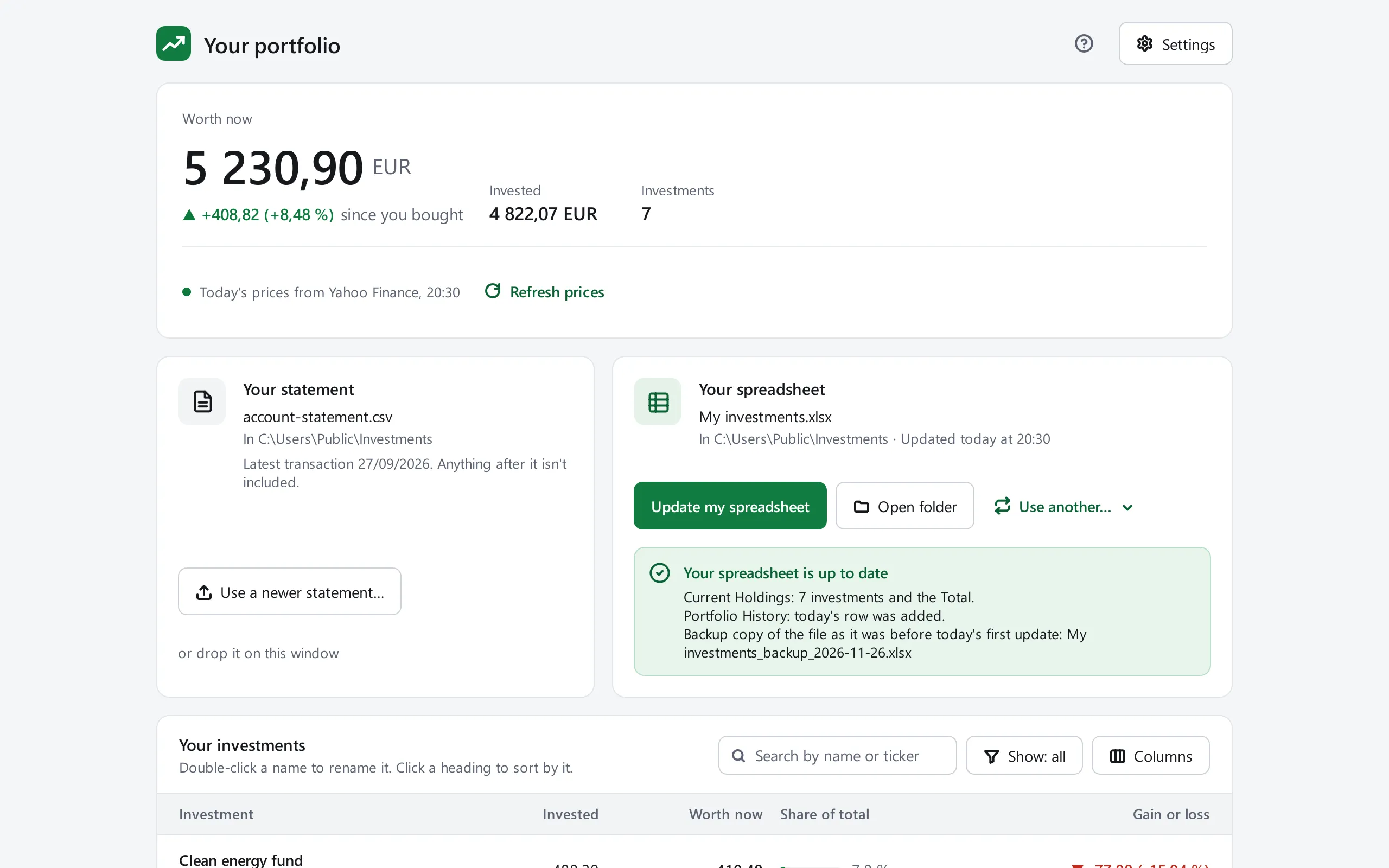
- The totals: what everything is worth now, your gain or loss since you bought, and what you invested. Refresh prices looks the prices up again.
- Your statement and your spreadsheet, side by side: where the values come from, and where they go.
- Your investments: one row each, and the total. You can sort them, show only some, and choose the columns.
To update your Excel file, press Update my spreadsheet. The app writes the values shown and says what it wrote, in green, or in red with what to do if it couldn’t save the file (usually because it is open in Excel: close it there and press Try again). Open folder shows the file in its folder. To switch to another spreadsheet, press Use another…, or drop an Excel file on the window. If the spreadsheet has been moved or deleted, Home says so.
Nothing is written until you press the button, unless you turn on Update it by itself in Settings: the app then writes your spreadsheet each time it has worked out today’s values. Help (the ? at the top) shows where to get the statement, how your data is handled and the app’s version.
No new statement needed
The app keeps a copy of the last statement you used, so it doesn’t need a new one each time. Your statement on Home names the file it was copied from and says the date of its latest transaction. The copy still works if you move or delete that file.
Bought, sold or added money since then? The statement from last time doesn’t know about it. Get a new one from Revolut and drop it anywhere on the window, or press Use a newer statement… The app keeps that one from then on.
Which listing is it?
Many funds are traded on several stock exchanges under the same code. When the app can’t tell which one is yours, it asks once, listing them with their exchange, currency and symbol, and marks those that match what you paid. They are usually the same fund at almost the same price. You can:
- Use this listing: pick the one whose name and currency match what you see in Revolut. If yours isn’t there, type its Yahoo Finance symbol in the box under the list.
- From now on, take the first listing without asking: the listing whose past prices best match what you paid always comes first, which is usually right.
- Skip this investment: it is left without a current value.
The app remembers your answer. To change it later, use Settings.
Read Home
Worth now is what everything you hold would be worth at today’s prices, in your statement’s currency. Under it, your gain or loss since you bought, with an arrow, a sign and a colour. Invested is what you paid for what you still hold, fees included.
| Column | Meaning |
|---|---|
| Investment | The fund or share: its name, with its code and stock exchange under it. |
| Invested | What you paid for what you still hold, fees included. |
| Worth now | What it would be worth at today’s price. Approximate. |
| Share of total | How much of all your investments this one is, by what they are worth now. |
| Gain or loss | Worth now minus invested, and as a percentage. |
The last row is the total. Investments you have sold completely are not listed. Columns adds others: shares, average cost per share, price per share, share of invested, gain from sales and dividends received.
- Sort: click a column’s heading, the largest amounts first; click again for the other way round, and a third time for the usual order.
- Show some: Show chooses between all investments, those gaining and those losing; Search by name or ticker finds one. The total then covers only those shown, and a line says so, with Show all.
- Rename: double-click an investment’s name (or click it and press F2) and type the name you want; it is used in your spreadsheet too.
- Undo: Ctrl+Z takes back the last change to an investment, Ctrl+Y makes it again.
The app remembers your columns, the order and what Show is set to.
When a price is missing
- “No price today”: the app couldn’t get a current price. Its row is grey, and the totals cover the other investments only: the app never guesses a value.
- “price from” a date: Yahoo Finance couldn’t be reached, so the last price found on an earlier day is used. The totals say so, with Try again.
- “your value”: one you entered yourself.
Enter its value… in the investment’s row (or a double-click on the row) lets you type what the whole investment is worth now, as the Revolut app shows it. You can also type it over “unavailable” in your spreadsheet. The app keeps your value until Yahoo Finance has a price again.
Your Excel spreadsheet
Each update writes two sheets of your file, creating them the first time. Close the file in Excel first: the app can’t save a file that Excel has open.
- Current Holdings: one row per investment you hold, and a Total. Percentages and the Total are Excel formulas, so they follow if you change a value. The whole sheet is rewritten each time, so keep your notes elsewhere.
- Portfolio History: one row per day you use the app (a second update on the same day changes that row), with what you put in, what it is worth, unrealized and realized gains, ROI %, net worth, net deposits and gain vs deposits.
New or existing? Create a new one makes a file with only the app’s two sheets: the safest choice. With a file you have, your own sheets stay as they are: values, formulas, formatting, colour rules, tables and charts are kept, and can read from the app’s sheets. Pictures, shapes and text boxes are lost, because the app saves the whole file again; if your file has any, create a new spreadsheet instead.
Backups: the first time each day the app changes an existing file, it saves a copy next to it, named with the date, for example My investments_backup_2026-10-15.xlsx. One is kept; you can keep more in Settings. To go back, open a copy and save it under your spreadsheet’s name.
Using Google Sheets
- Install Google Drive for desktop and sign in. Your Drive appears on your computer like a folder.
- When the app asks for a spreadsheet, create it inside your Drive, or choose an Excel file already there.
- Open it from drive.google.com. Google Sheets edits it as an Excel file (it shows a small .XLSX label).
After each update, reload the page to see the new values. Close the file in Google Sheets before the app updates it. File › Save as Google Sheets makes a separate copy, which the app does not update.
Settings
Press Settings at the top of Home. Changes are saved at once.
- Your investments: each one’s ⋯ button offers Rename, Choose the listing next time and Forget… And the switch Take the first listing without asking.
- Your statement: the one the app keeps, with Use a newer one… and Forget it…
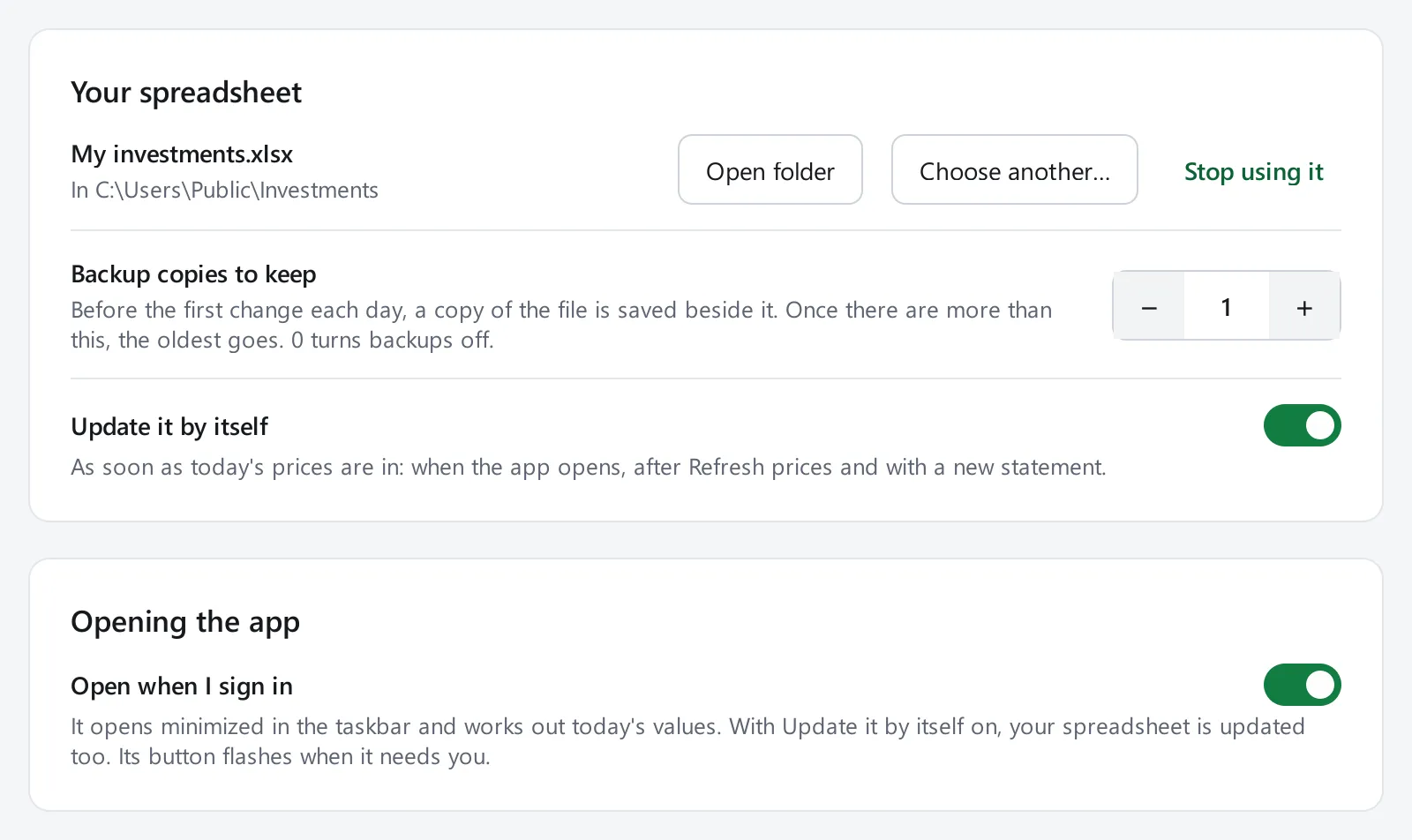
- Your spreadsheet: Choose another…, Stop using it, how many backup copies to keep, and Update it by itself: the app writes your spreadsheet each time today’s prices are in, without the button.
- Opening the app: Open when I sign in opens the app each time you sign in to your computer, minimized in the taskbar (the Dock on a Mac), where it works out today’s values. With Update it by itself on, your spreadsheet is then updated every day without you opening anything. When the app needs you, its taskbar button flashes. Only the installed app can do this; on a Mac, move it to Applications first.
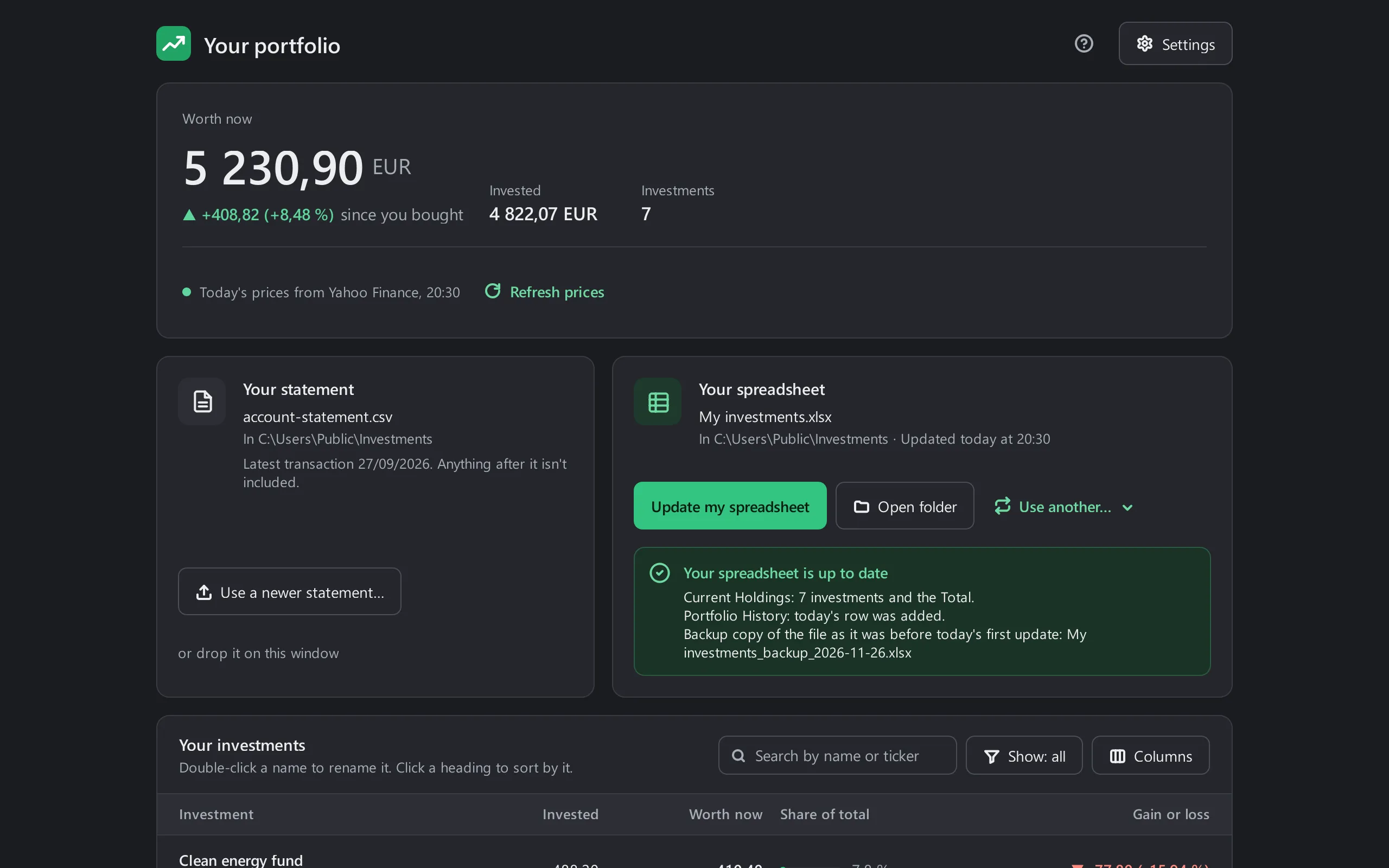
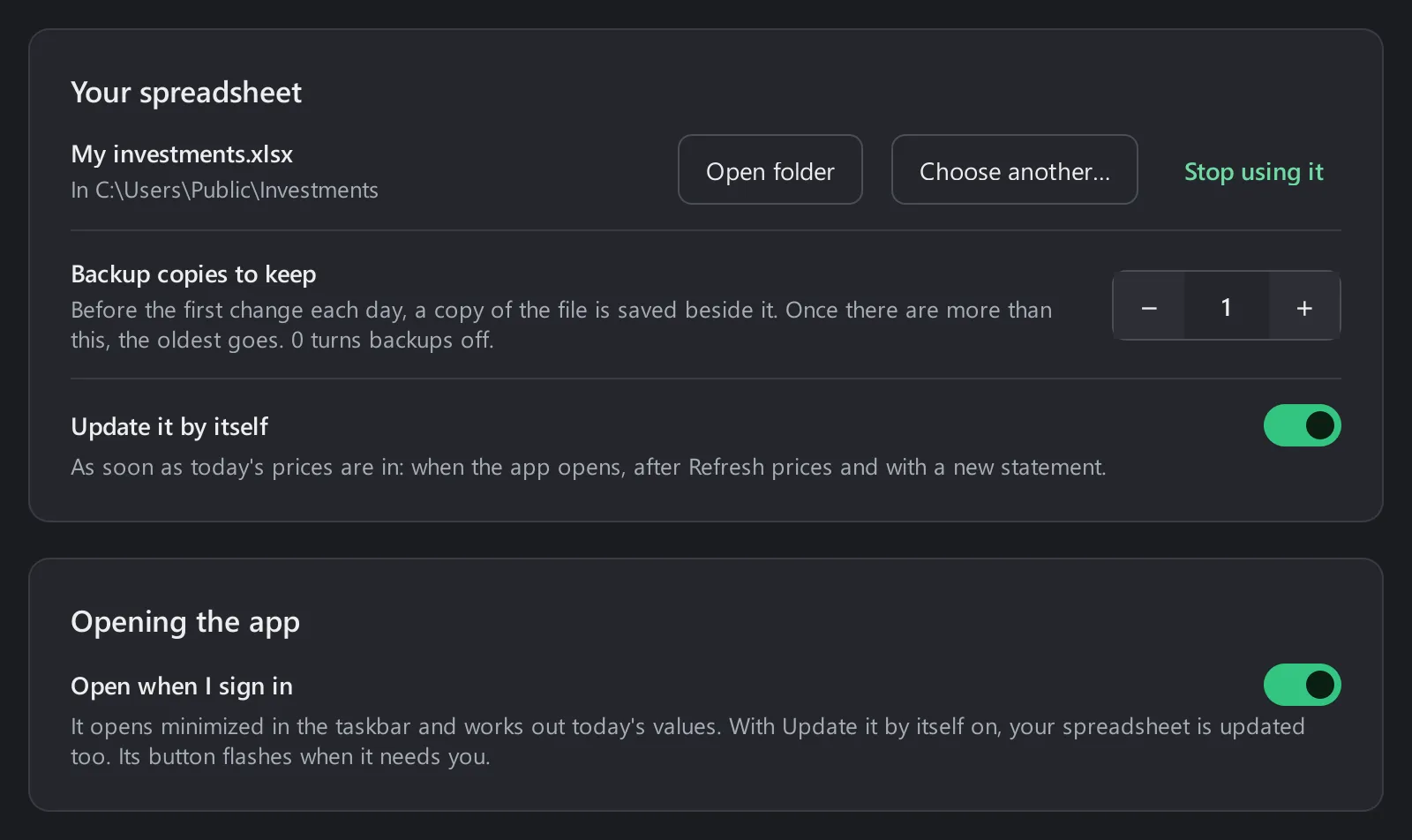
- Appearance: light, dark, or as your computer is set.
Opening the app while it is already open, minimized or not, brings up the window that is open instead of a second one.
Privacy
Everything happens on your computer. There are no accounts, and the app doesn’t record how you use it. The only thing that leaves your computer is the codes of your investments and dates, sent to Yahoo Finance to look up prices. Your statement and your amounts are never sent anywhere, and none of the amounts in your statement are kept by the app.
The app keeps a few kilobytes in your user folder: its settings (your confirmed investments, where your spreadsheet is), the last prices found, values you entered, and a copy of the last statement you used, so that it needs no new one each time. That copy holds your whole trading history, like the file you downloaded from Revolut; Settings can forget it. Uninstalling the app on Windows deletes all of it, and takes the app out of your startup apps.
Known limitations
- Only Revolut’s stock statement in CSV format, with the “All time” range, is supported.
- The statement must be in a single currency.
- Only cash top-ups, market buys, market sells and dividends are understood. Anything else (a stock split, a withdrawal) stops the app with a message naming the row, so it never shows numbers built on a guess.
- Prices need an internet connection. Without one, the app uses the last prices it found, dated, or shows “No price today”; you can then enter values yourself.
- The figures are simple: what you paid against what it is worth now. No tax calculations.
- English only. The app doesn’t update itself: new versions are on the download page.
Report a problem
Open an issue on GitHub. If the app showed an error box, click Copy details there and paste the text into the issue. Don’t attach your real statement: it contains your trades and amounts. Describe the problem and the row the message mentions instead.